How to set multiple alarms automatically on Android
If you need alarms every 5, 10, or 15 minutes, setting them one by one in the default Clock app wastes time and leaves a mess. Here are the 3 real options on Android.
Use a dedicated interval alarm app (Repeat Alarm: Clock-It)
Instead of creating 12 or 20 individual alarms by hand, an interval alarm app generates the whole window from three numbers: start time, end time, and repeat interval.
01 · Window
Pick start & end time
For example, 6:00 AM to 7:00 AM for morning wake-ups, or 8:00 AM to 8:00 PM for hourly reminders.
02 · Interval
Choose repeat spacing
Select 1, 2, 5, 10, 15, or 30 minutes—plus optional random ringtone and message label.
03 · Confirm
Review & toggle as one
Clock-It lists every scheduled ring time and stores the whole block behind one switch.
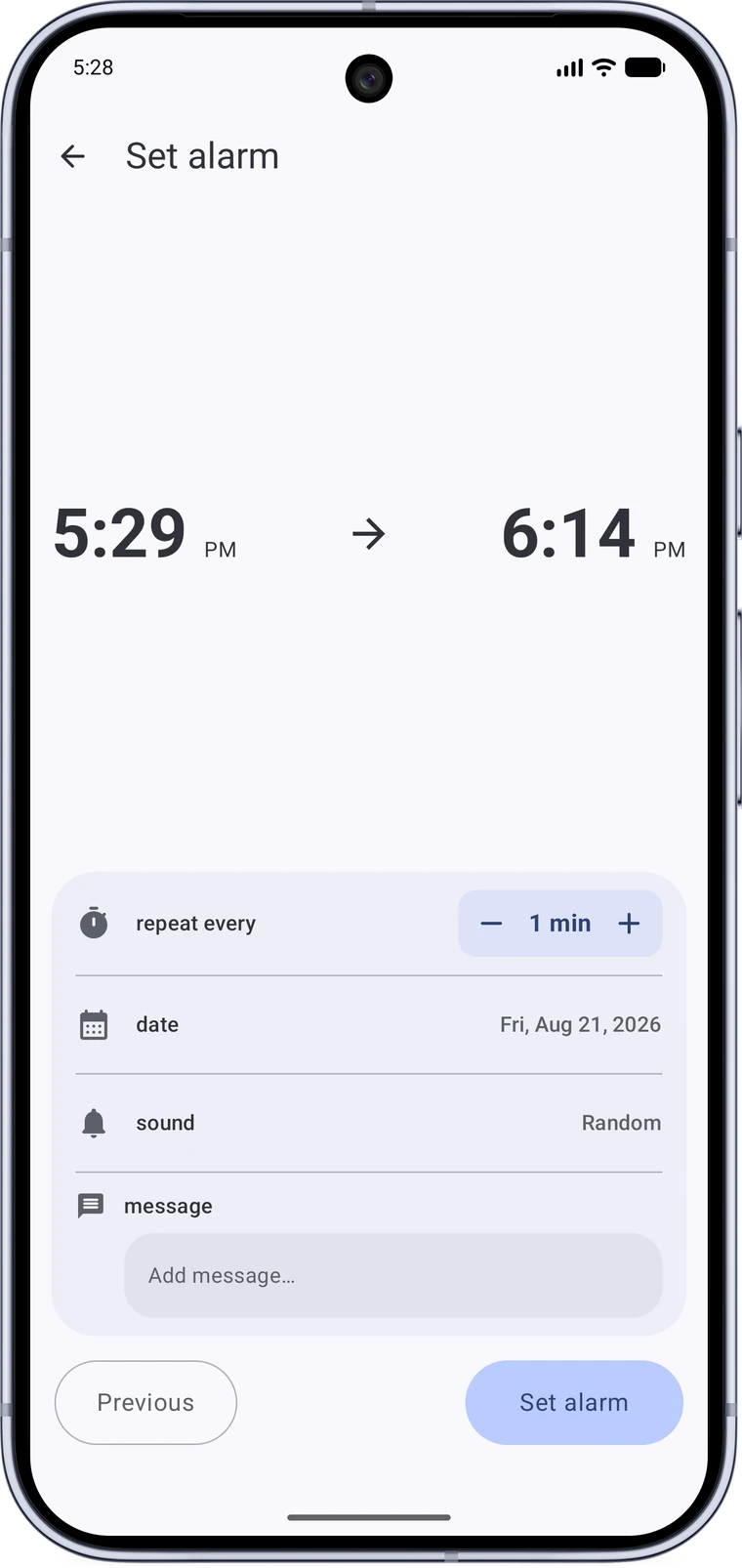
Configure once
Start, end & interval
Choose your time window, interval spacing, alarm sound, and optional label in seconds.
Full schedule
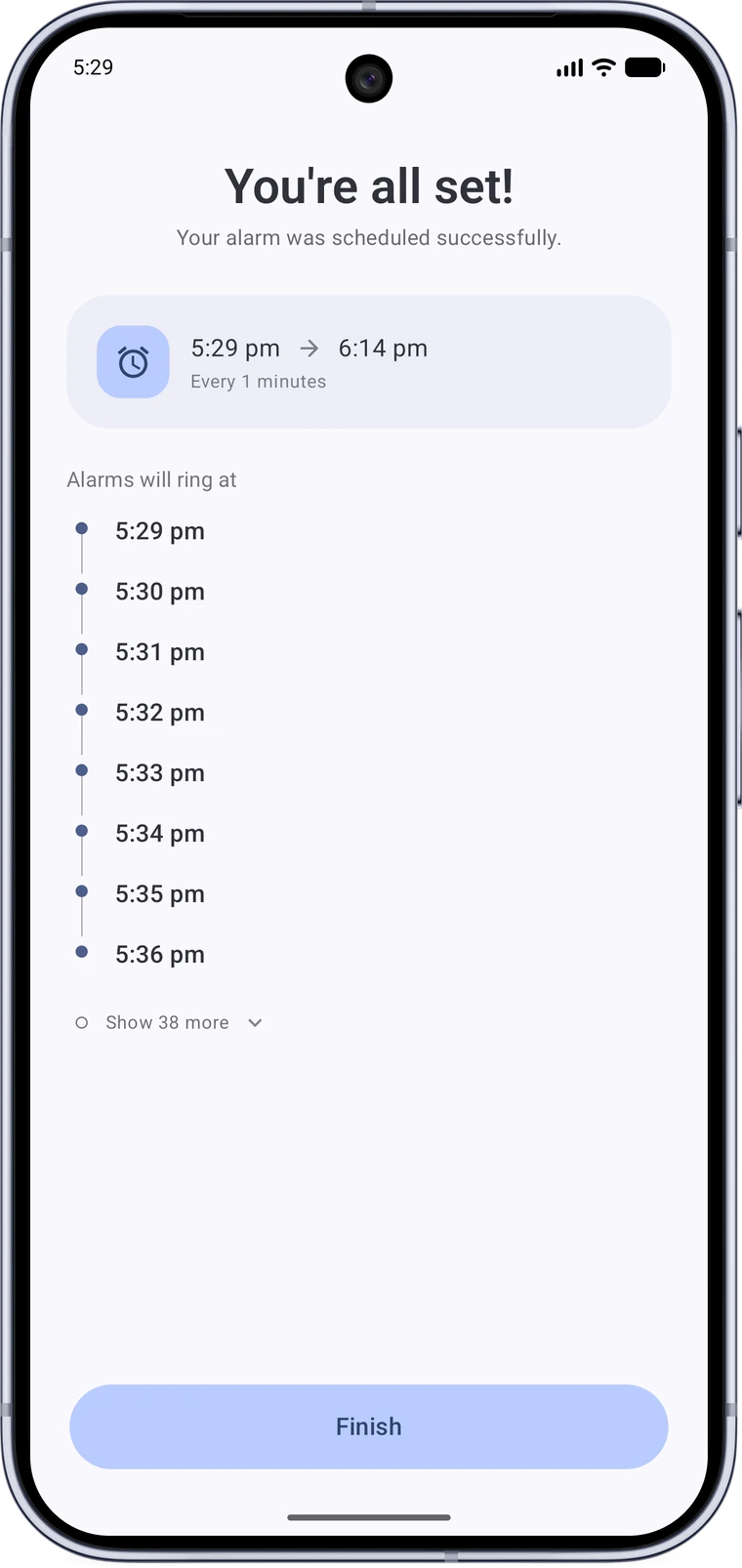
Every ring time listed
Confirm the exact sequence before finishing—no guessing which times were scheduled.
Interactive schedule preview
Preview your repeating alarm sequence
Alarms will ring at
6:00 AM → 7:00 AM
- 6:00 AM
- 6:05 AM
- 6:10 AM
- 6:15 AM
- 6:20 AM
- 6:25 AM
- 6:30 AM
- 6:35 AM
- 6:40 AM
- 6:45 AM
- 6:50 AM
- 6:55 AM
- 7:00 AM
Setting 13 alarms manually means repeating your clock picker 13 times. Repeat Alarm: Clock-It schedules the entire sequence from one setup on Android.
Create on AndroidMethod 2 · Built-in stock Clock
Google Clock / Samsung Clock snooze workaround (and its catch)
If you only want to use your phone's pre-installed Clock app, you can set snooze length to 5 or 10 minutes. The catch is that snooze stops the moment you accidentally tap Dismiss while half-asleep. Setting separate manual alarms avoids that, but creating 15–20 alarms manually clutters your Clock tab and means toggling each one off individually when your schedule changes.
Method 3 · Power-user automation
MacroDroid or Tasker scripts
Automation tools like MacroDroid and Tasker can trigger alarms in a loop or respond to custom conditions. They are great if you want sensor or Wi-Fi rules, but overkill—and slow to adjust—when you just want to change tomorrow's wake-up window in five seconds before bed.
Android reliability checklist (so alarms never get killed overnight)
Whichever alarm app you choose on Android, check these four settings—especially on Samsung, Xiaomi, OnePlus, Oppo, and Realme phones:
- 1. Allow Alarms & Reminders permission: On Android 12+, confirm the app is allowed to schedule exact alarms in App Info.
- 2. Set Battery usage to Unrestricted: Open App Info → Battery and choose Unrestricted (or disable battery optimization) so Android Doze mode does not delay morning alarms.
- 3. Check Do Not Disturb exceptions: Make sure alarms are allowed to bypass Do Not Disturb overnight.
- 4. Verify Alarm volume: Android separates media, ring, and alarm volume—keep the alarm slider high (or enable force-loud volume in Clock-It).
Frequently asked questions
No. Google Clock and most OEM stock clock apps require creating each alarm individually. You can use Snooze to repeat an alarm after it rings, but tapping Dismiss once stops the chain completely.
One setup. Every alarm in between.
Try Repeat Alarm: Clock-It free on Android—ad-free, Material 3 light & dark themes, and one clean toggle per window.
More guides & tools
All guides ›Alarmy Alternative for Android
Compare Repeat Alarm: Clock-It vs Alarmy—ad-free interval alarms instead of missions, paywalls, and clutter.
Repeat Alarm Alternative for Android
Schedule an entire start-to-end interval alarm sequence from one setup with Material 3 light & dark themes.
Alarm Setup for Heavy Sleepers & ADHD on Android
Use tight interval windows, random ringtones, and force-loud volume so there is no quiet gap to fall back asleep.
Repeat Alarm Interval Calculator
Pick a start time, end time, and repeat interval to preview every exact alarm ring time in your schedule.